For 24-Hour Service Call 905-361-9107

- Home
- Microsoft 365 Copilot: How SMBs Can Work Smarter
Microsoft 365 Copilot: How SMBs Can Work Smarter

October 10, 2025 - AI
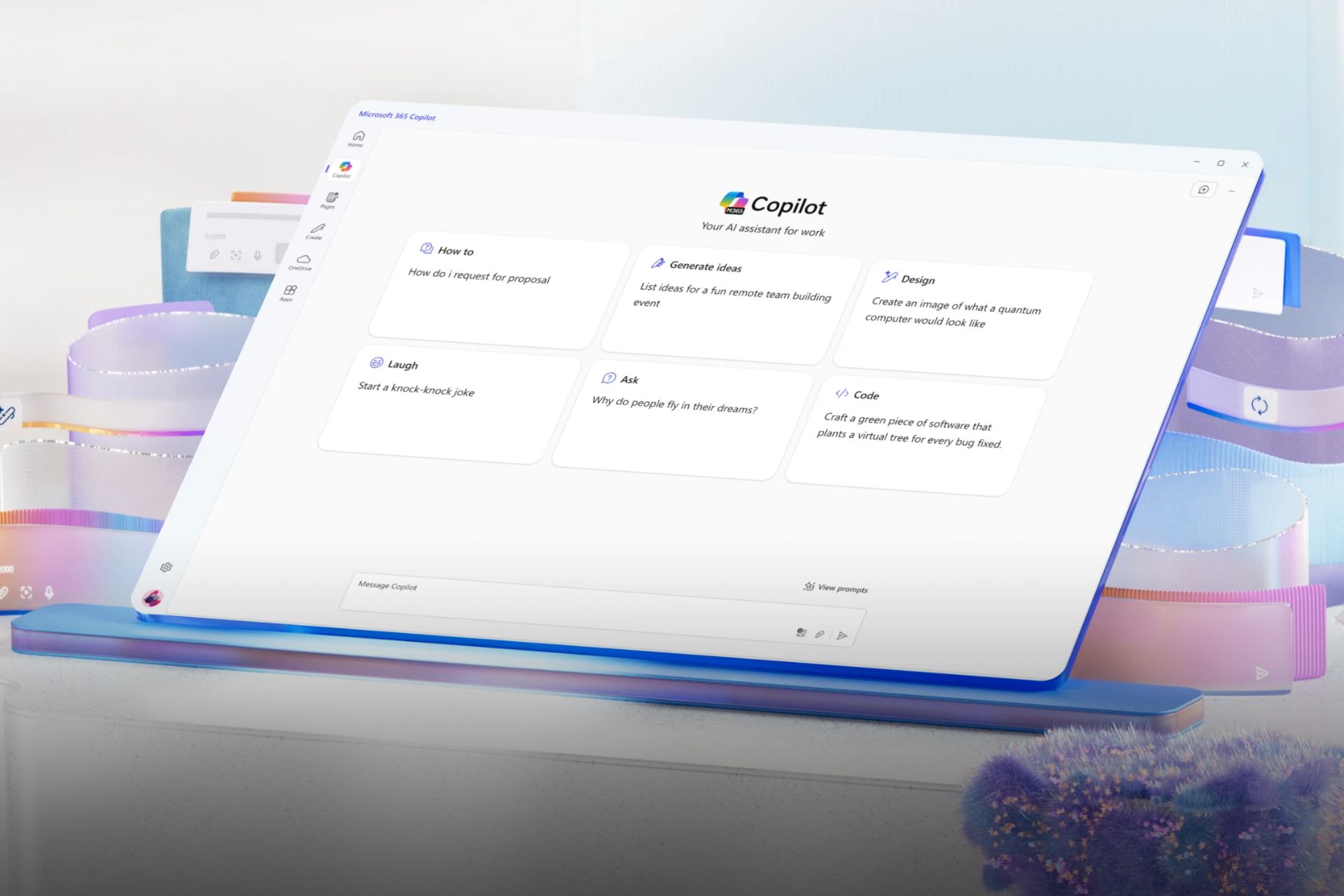
Microsoft 365 Copilot
For small and mid-sized businesses (SMBs), every minute counts. You’re balancing customer needs, operations, finances, and growth — often with lean teams and tight budgets. What if you had a smart assistant built right into the Microsoft tools you already use — Outlook, Teams, Word, Excel — to help you draft, summarize, analyze, and automate?
That’s what Microsoft 365 Copilot offers. In this guide, we’ll walk through what Copilot is, why it matters for SMBs, and how to adopt it in a way that delivers real productivity gains.
What is Microsoft 365 Copilot?
At its core, Microsoft 365 Copilot is an AI-powered assistant built directly into the Microsoft tools your business already uses every day — Outlook, Teams, Word, Excel, PowerPoint, and more. Instead of being a separate app to learn, it works alongside your existing workflows.
That means your team doesn’t need to change the way they work. Copilot simply enhances it. By typing a prompt in natural language (just like you’d ask a colleague), you can tap into Copilot to help with time-consuming tasks. For example, you can ask Copilot to:
• Summarize long email threads so you don’t have to scroll endlessly to find the key decision or action item.
• Draft a proposal, blog post, or presentation outline, giving you a head start instead of facing a blank page.
• Suggest formulas, analyze trends, or build charts in Excel, making complex data easier to work with for non-experts.
• Capture meeting notes and highlight action items in Teams, so your staff can focus on the discussion instead of scrambling to take notes.
So, unlike generic AI tools, Copilot works with your business data in a secure way. It leverages Microsoft’s existing permissions, security, and compliance policies, meaning staff only see what they’re authorized to see. This makes it especially valuable for SMBs handling sensitive client, financial, or employee information — you gain the productivity of AI without compromising on trust or compliance.
In Short
Copilot is essentially about working smarter with the tools you already own, helping small businesses punch above their weight without adding more overhead.
Why Copilot Matters for SMBs
For small and mid-sized businesses, productivity and focus are everything. Unlike large enterprises, SMBs often run lean — with smaller teams wearing many hats. That’s where Microsoft 365 Copilot can make a tangible difference. It isn’t just about saving time; it’s about helping your people work smarter and redirect their energy to higher-value activities.
Here are the top reasons Copilot matters for SMBs:
1. Boosting Productivity
Administrative tasks like formatting documents, drafting emails, and preparing reports often consume hours each week. With Copilot, these tasks can be automated or accelerated. Imagine your office manager asking Copilot to summarize last week’s client emails instead of manually reading through them — freeing up hours for client engagement instead of inbox management.
2. Improving Collaboration
SMBs rely heavily on teamwork and quick decision-making. Copilot keeps teams aligned by providing instant meeting summaries in Teams, suggesting shared action items, and ensuring everyone leaves the meeting with the same understanding. For distributed or hybrid teams, this means less confusion and more alignment across projects.
3. Reducing Errors
Mistakes in documents, formulas, or communications can cost SMBs both time and reputation. Copilot minimizes errors by suggesting formulas in Excel, ensuring consistent tone in client communications, or flagging incomplete action items. While human review is always essential, having Copilot as a second set of “digital eyes” reduces the chance of small errors becoming big problems.
4. Unlocking Insights
Data analysis is no longer limited to technical experts. With Copilot, anyone on your team can ask, “Show me which product lines grew the fastest last quarter,” and receive a chart or summary without needing advanced Excel knowledge. This democratizes insights, helping SMBs make faster, data-driven decisions.
5. Scaling Without Adding Headcount
Hiring new staff is a big investment for an SMB. Copilot acts like a virtual assistant across your Microsoft apps, providing support in marketing, sales, operations, and finance. This means you can scale output and efficiency without immediately increasing payroll costs.
In Short
Microsoft 365 Copilot helps SMBs do more with the resources they already have. By automating the repetitive and simplifying the complex, it allows small businesses to compete with larger players on a more even footing.

Supercharge Your Microsoft 365 Investment
Copilot is only as effective as the foundation it runs on. Our Microsoft 365 services help SMBs get the most out of their tools — from secure migrations to ongoing management and optimization. Discover how the right setup can unlock smarter, faster, and more collaborative work across your business.
Explore Microsoft 365 ServicesKey SMB Use Cases
One of the best ways to understand Microsoft 365 Copilot is to look at the practical tasks it can support across different areas of your business. For SMBs, the biggest gains come from everyday workflows where time is tight and resources are limited.
Email & Communication
Email is the lifeblood of many small businesses — and often the biggest time drain.
• Copilot can summarize long email threads, helping you catch up on what matters without reading every reply.
• It can draft responses in your tone of voice, saving you from starting from scratch each time.
• For client outreach, Copilot can help you draft professional follow-ups or reminders quickly, ensuring consistent communication without bottlenecks.
Sales & Marketing
Sales teams and business owners spend countless hours writing proposals, updating clients, or generating content.
• In Word, Copilot can draft client proposals or pitch decks, giving you a framework to refine instead of a blank page.
• In Outlook, it can summarize CRM notes or recent activity to prep you for a sales call.
• For marketing, Copilot can generate first drafts of blog posts, newsletters, or social posts, freeing up time to focus on strategy rather than formatting.
Finance & Operations
SMBs often rely on Excel for everything from budgeting to forecasting.
• Copilot can analyze expense data, highlight cost overruns, or forecast revenue trends.
• It can automatically build pivot tables or charts from raw data, making insights accessible to non-technical staff.
• Operations managers can ask Copilot to spot inefficiencies or patterns (e.g., rising supplier costs) without deep manual analysis.
Meetings & Collaboration
Meetings can be productive, but also a source of wasted time if nothing gets captured.
• Copilot in Teams can record, transcribe, and summarize meetings, highlighting action items.
• It can generate task lists directly from conversations, ensuring nothing falls through the cracks.
• For hybrid teams, Copilot ensures those who couldn’t attend stay in the loop.
HR & Onboarding
Hiring and retaining talent is a challenge for SMBs, and HR teams (or business owners themselves) often juggle it alongside other responsibilities.
• Copilot can draft job descriptions, onboarding documents, or policy updates quickly.
• It can help create training guides or FAQs tailored to new hires.
• In Outlook, it can draft personalized welcome messages for new employees, saving time while keeping communication warm.
Customer Service
For SMBs that handle support requests by email or Teams, Copilot can help:
• Draft professional replies to common customer inquiries.
• Summarize case history so agents can see the key details at a glance.
Provide consistency in tone and messaging, improving customer experience.
Getting Started with Copilot
Rolling out Microsoft 365 Copilot isn’t just about turning it on; a little bit of preparation ensures your business sees real benefits from day one. Here’s what to do before you start:
1. Clean Up Permissions & Data
Copilot respects your Microsoft 365 permissions, but if files are overshared, it might surface data to the wrong people.
Action step: Audit your SharePoint and OneDrive folders to make sure access levels are set correctly.
Example: If everyone in your company can access HR files today, Copilot could potentially pull that into a summary for someone who shouldn’t see it.
2. Pick Starter Use Cases
Don’t try to do everything at once. Choose 2–3 workflows where time savings will be most visible.
Action step: Ask each team lead what their biggest “time drains” are — email management, reporting, or meeting notes are often top candidates.
Example: A sales manager could test Copilot on drafting proposals, while the finance lead uses it for monthly expense reports.
3. Pilot with a Small Group
Start with a small, trusted team before rolling out company-wide. This allows you to iron out issues and build internal champions who can help train others.
Action step: Select 3–5 people across departments to test Copilot for a month.
Example: Choose one person from sales, operations, and finance so you can see value across functions.
4. Train Your Users
Copilot is powerful, but results depend on how people use it. Teams need guidance on how to ask the right questions (“prompting”).
Action step: Run a short training session on prompt design, e.g., “Write a client email in a friendly but professional tone, 3 paragraphs max.”
Example: Encourage staff to share their best prompts in a shared Teams channel.
5. Monitor Results & Collect Feedback
Treat Copilot like any other business investment and measure whether it’s paying off.
Action step: Track metrics like hours saved, time to draft proposals, or employee satisfaction.
Example: If your office manager used to spend 5 hours/week organizing meeting notes, but now spends 30 minutes, you can quantify ROI.
Bottom Line
Start small, tidy your data, and learn from feedback — it’s the best way to get real value from Copilot without the headaches.

Case Study: Newman's Own
Newman’s Own, a 50-person organization with a strong purpose, publicly shared how Microsoft 365 Copilot became a force multiplier across their operations. They used Copilot across departments — marketing, finance, HR — to help with writing, summarizing, and data tasks, enabling their small team to compete more efficiently with larger firms.In their own words, Copilot has reduced time spent on drafting and editing content and allowed staff to focus more on strategy and creative work. This “small team, big impact” story shows how Copilot can scale beyond isolated use and become an integrated part of SMB workflows.
Take Action for Your Own BusinessBest Practices for Using Copilot
Once Microsoft 365 Copilot is switched on, how your team uses it will determine its value. The good news: with the right habits, even small teams can see big productivity gains. Here are some best practices to follow:
1. Write Clear, Contextual Prompts
Copilot responds best when you tell it what you need in plain language, but context is key.
Instead of: “Write an email.”
Try: “Write a polite follow-up email to a client who hasn’t responded in two weeks. Keep it short, friendly, and professional.”
The more detail you give, the closer Copilot’s output will be to what you want.
2. Start Small and Build Confidence
Encourage your team to begin with simple, low-risk tasks before moving to client-facing materials.
Start with meeting summaries or internal notes.
Move on to drafting proposals or client emails.
Over time, explore data analysis or complex document creation.
This phased approach helps employees build trust in the tool.
3. Always Review and Refine
Copilot drafts, but humans approve. Treat its output as a first draft, not the final word.
Encourage staff to edit tone, check accuracy, and ensure brand alignment.
Build in a “two-minute review rule” so no AI-generated text goes out unchecked.
4. Share What Works Across Teams
Make Copilot a shared learning experience.
Create a Teams channel or shared document where staff can post effective prompts or clever use cases.
Celebrate wins, such as “Marketing cut proposal time by 50% using Copilot prompts.” This builds a culture of experimentation and continuous improvement.
5. Highlight and Celebrate Early Wins
Change can be uncomfortable. Highlighting small victories encourages adoption.
Share stories like: “Finance used Copilot to prepare the monthly report in half the usual time.”
Recognize these achievements in team meetings. The more people see tangible benefits, the more momentum builds.
6. Balance AI with Human Oversight
Copilot is a powerful assistant, but it is not infallible.
Use AI for speed and structure.
Keep strategy, judgment, and client relationships human-led. This balance ensures quality while unlocking efficiency.
In Practice
Treat Copilot as a new team member who is learning fast. Guide it, give it feedback, set guardrails, and it will become an invaluable support system.
Ready to Work Smarter with Copilot?
AI isn’t the future of work — it’s already here. If you’re ready to harness Copilot to save time, strengthen collaboration, and accelerate results, our team can guide you every step of the way. From pilot projects to company-wide rollouts, we’ll make sure Copilot works for your needs.
Get in TouchPitfalls & Considerations
While Microsoft 365 Copilot can significantly boost productivity, small businesses should approach implementation with a balanced perspective. Here are the main considerations to keep in mind:
1. Accuracy and Reliability
Copilot generates content quickly, but it does not guarantee accuracy. With that in mind:
• Facts, figures, and client details must always be double-checked.
• AI may sometimes “hallucinate” — producing information that sounds confident but is incorrect.
• Businesses handling sensitive or regulated information (e.g., healthcare, finance, etc.) must build in review processes to prevent errors.
2. Security and Compliance
Copilot respects your organization’s existing Microsoft 365 security and compliance settings. However:
• Sensitive data can still surface in generated drafts, depending on how prompts are written.
• Train employees not to request outputs that expose confidential details unnecessarily.
• Review your Microsoft 365 security configuration to ensure permissions and access levels are correctly set before rolling out Copilot broadly.
3. Cost Management
Copilot is currently a premium add-on, and licensing fees can add up quickly for small teams. Therefore:
• Conduct a cost-benefit analysis: identify where productivity gains will offset subscription costs.
• Consider piloting Copilot with a small group of employees before rolling it out company-wide.
• Track adoption closely to ensure you’re not paying for unused licenses.
4. Change Management and Training
Introducing AI can be met with resistance. Some employees may worry about job security or feel overwhelmed by new tools. Here are some steps that you can take:
• Provide clear training and resources to build confidence.
• Emphasize that Copilot is designed to assist rather than replace employees.
• Encourage experimentation while reinforcing that human oversight remains essential.
5. Dependence and Overuse
There is a risk of teams leaning too heavily on Copilot. We recommend that business owners do the following:
• Encourage staff to use Copilot for efficiency, not as a substitute for critical thinking.
• Remind employees that AI is best at drafting and summarizing, but strategy, nuance, and creativity must remain human-led.
6. Integration Challenges
While Copilot integrates seamlessly into Microsoft apps, challenges may still arise:
• Outdated versions of Microsoft 365 or mismatched licenses can create rollout delays.
• Businesses with custom workflows may find that Copilot doesn’t always adapt perfectly.
• Testing across different departments before full deployment helps surface potential issues early.
In Short
Copilot is a powerful tool, but it works best with a bit of planning. By focusing on accuracy, compliance, and team adoption, small businesses can reduce risks and get the full benefit of AI-powered productivity.
Your Roadmap to Success with Copilot
If you’re ready to bring Copilot into your business after exploring what it can do — and what to watch out for — here’s a simple roadmap to help you get started and see real results:
1. Select a Pilot Team
Pick 2–5 people from different functions — such as operations, sales, and finance — and assign them Copilot licenses.
2. Identify Your Top 2–3 Use Cases
Focus on tasks that are repetitive, time-consuming, or consistent, like email summaries, report generation, or meeting notes.
3. Train Your Users & Gather Feedback
Run a short workshop or share a quick guide on writing prompts, expected outputs, and review practices. Collect feedback each week and adjust as you go.
4. Measure Early Metrics of Impact
Track metrics like hours saved, adoption rates, errors caught, and user sentiment. Use these insights to build your case for a broader rollout.
5. Scale Gradually
Once you’ve seen success, expand Copilot to more team members and departments, refining templates and best practices along the way.
Did You Know?
If you’d like to explore hands-on guidance and tutorials, Microsoft’s Copilot Learning Hub offers quick lessons, best practices, and real-world examples to help your team get started.
Let’s Keep the Conversation Going
Have you tested Copilot yet? What’s worked well and what’s been challenging? Share this post with other Canadian business owners and join the conversation. We’d love to hear your story.